
Download aMSN – Free, Secure Messenger Alternative with Webcam Support
Overview
aMSN is a lightweight, open‑source instant‑messaging client that was built as an alternative to Microsoft Messenger for Mac 7.0. While it mimics the classic look of the original MSN client, aMSN adds a handful of modern conveniences that many users miss in the legacy software. The most compelling feature is webcam support – a capability that was once limited to corporate‑grade versions of MSN Messenger. With aMSN you can launch a video chat with a single click, record and send short audio clips, and organize contacts into customizable groups. Although the latest release temporarily lost real‑time audio and video playback due to changes in Microsoft’s AV protocol, the development team has pledged a fix, and the client still offers a robust set of plugins, skins, and preference tweaks. aMSN runs on Windows, macOS, and Linux, making it a truly cross‑platform solution for anyone who still cherishes the nostalgia of the early 2000s chat era while wanting a bit more flexibility than the original messenger provided.
Key Features and Built‑In Tools
- Webcam integration – start video chats directly from the chat window.
- Audio‑clip recording – capture short voice messages and send them to contacts.
- Custom skins and themes – download community‑made skins to refresh the UI.
- Plugin architecture – extend functionality with plugins for emoticons, file transfer enhancements, and more.
- Group management – drag‑and‑drop contacts between groups for easy organization.
- Offline messaging – receive messages sent while you were offline.
- Event alerts and sound notifications – fine‑tune alerts for messages, invites, and status changes.
- Auto‑away and status timers – automate status changes based on inactivity.
- File transfer support – send files up to 100 MB without leaving the chat.
- Animated emoticons – bring conversations to life with animated smileys.
Each feature is designed to keep the client lightweight while still delivering a familiar chat experience. The plugin system, in particular, sets aMSN apart from other legacy messengers. Users can install the “DualDisplayPicture” plugin to show two profile pictures side by side, or enable the “Audio and Video Assistant” for improved handling of JPEG webcams. Even though the official client no longer streams live audio, the voice‑clip functionality remains a handy way to share quick spoken updates. For power users, the preferences menu offers granular control over everything from proxy settings to UI animations, allowing a highly personalized setup without sacrificing performance.
Installation, Usage, and Compatibility
Step‑by‑Step Installation Guide
Windows (7, 8, 10, 11): Download the latest aMSN‑setup.exe from the official website. Run the installer, accept the license agreement, and choose the default installation folder (C:\Program Files\aMSN). After installation, launch the program from the Start menu. The first run will prompt you to enter your Microsoft Messenger credentials – aMSN uses the same authentication method as the original client.
macOS (10.12 Sierra and later): Grab the aMSN‑mac.dmg file, open it, and drag the aMSN icon into your Applications folder. macOS may flag the app as from an unidentified developer; simply right‑click the icon, select “Open,” and confirm you want to run it. Once opened, sign in with your Microsoft account.
Linux (Ubuntu/Debian, Fedora, Arch): aMSN is available in most distribution repositories. For Ubuntu/Debian, run sudo apt-get install amsn. For Fedora, use sudo dnf install amsn. Arch users can install via the AUR with yay -S amsn. After installation, start the client from your applications menu or by typing amsn in the terminal.
Getting Started with the Interface
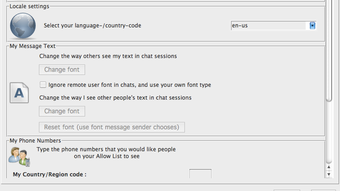
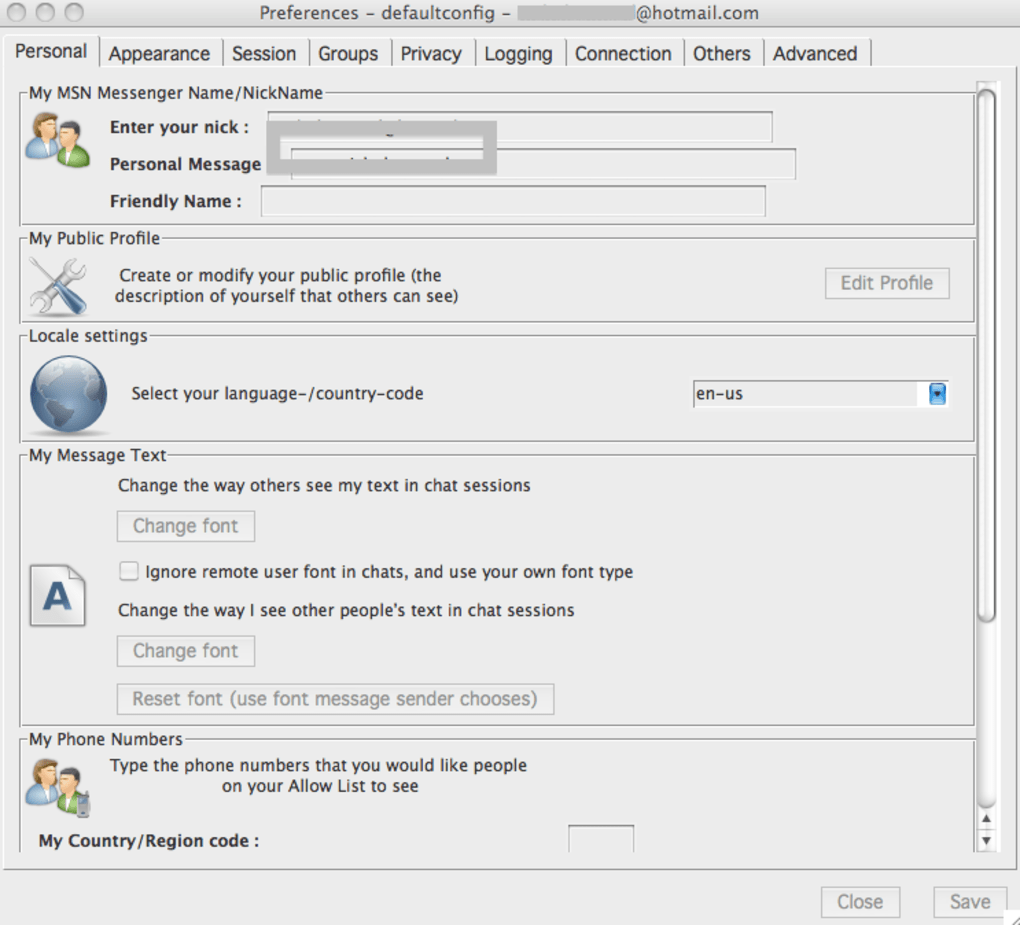
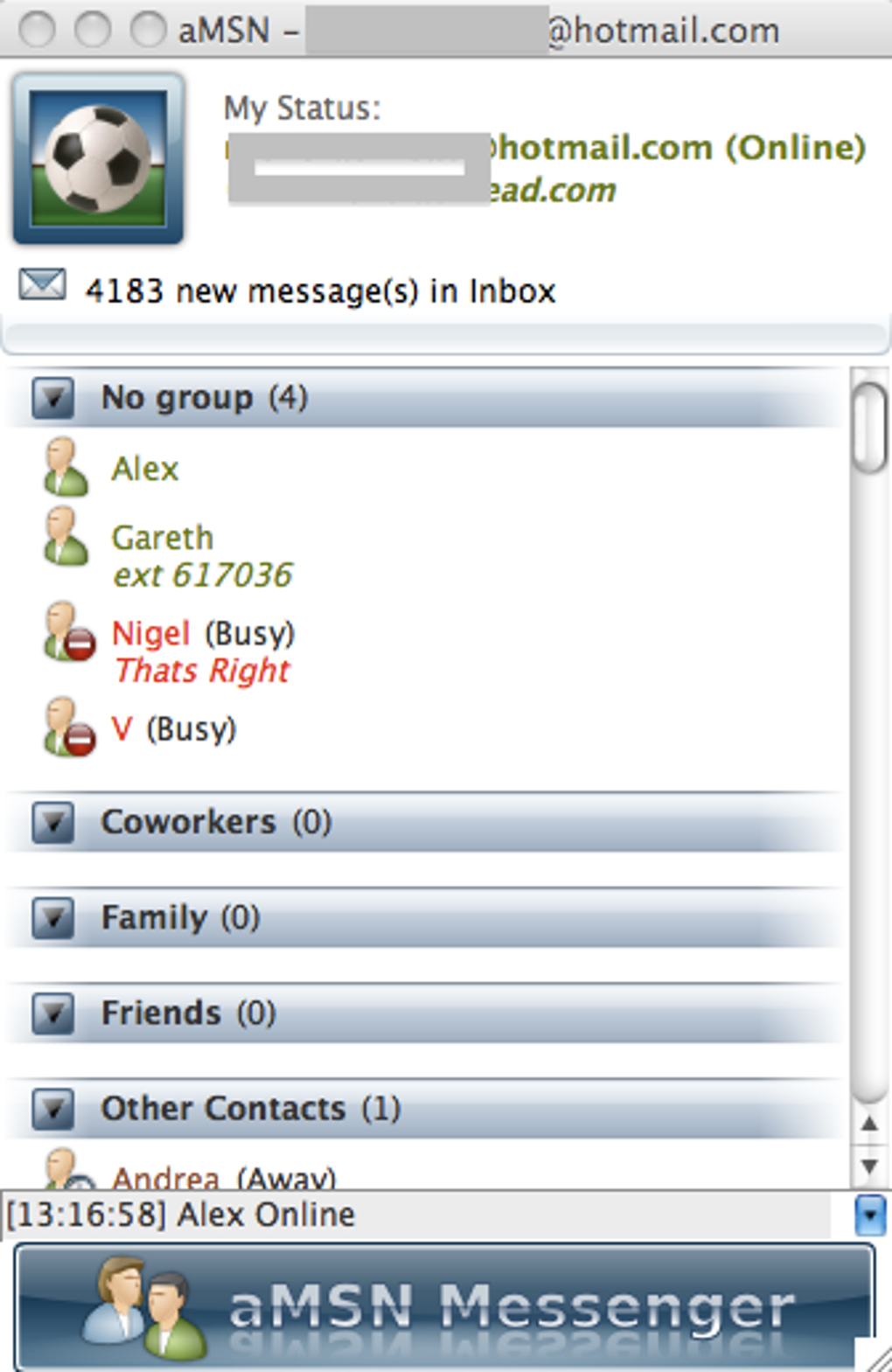
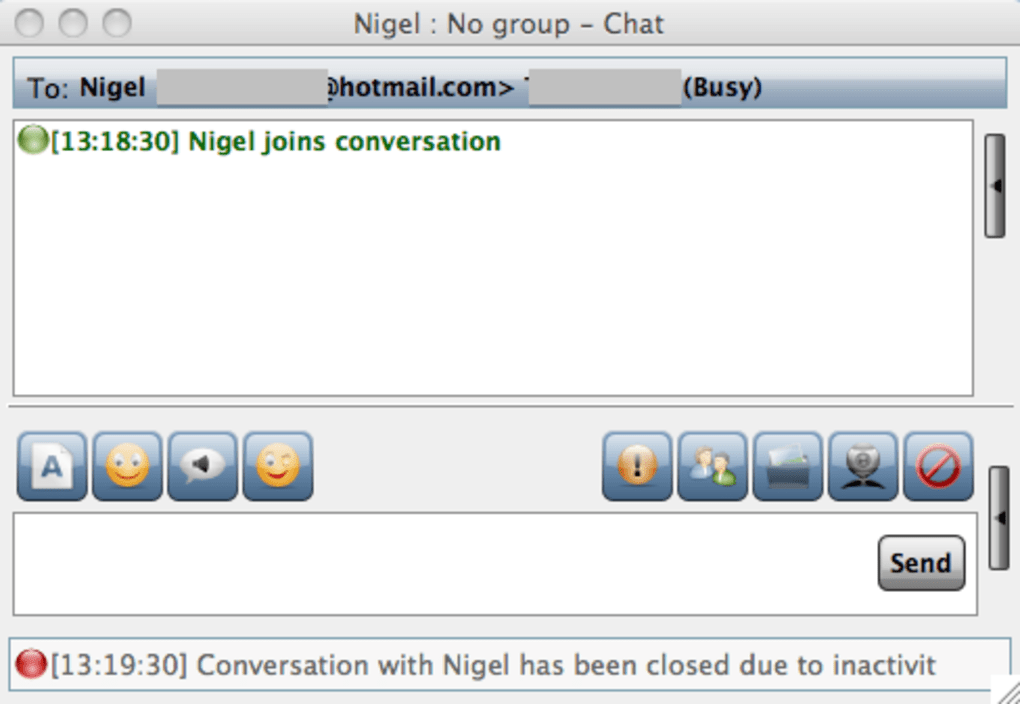
Once logged in, the main window resembles the classic MSN layout: a contact list on the left, chat tabs in the center, and a status bar at the bottom. To start a webcam session, open a chat with a contact and click the small webcam icon. For audio clips, click the microphone button, record your message, and hit send. The “Preferences” dialog (accessible via the gear icon) lets you enable or disable notifications, set your auto‑away timer, and choose a skin from the “Skins” tab. If you want to expand functionality, navigate to the “Plugins” section, where you can enable community‑crafted extensions such as “FileTransferPlus” or “AnimatedEmoticons.”
aMSN supports Windows, macOS, and Linux, ensuring that you can stay connected regardless of your preferred platform. The client runs smoothly on older hardware, making it an excellent choice for users with legacy machines or those who prefer a minimalistic, resource‑light chat app.
Pros, Cons, and Frequently Asked Questions
Pros
- Free and open‑source – no hidden fees or subscription required.
- Cross‑platform support for Windows, macOS, and Linux.
- Webcam integration that works without a corporate license.
- Highly customizable via skins and plugins.
- Lightweight footprint – runs comfortably on older PCs.
- Offline messaging and group management features.
Cons
- Current version lacks real‑time audio and video streaming due to protocol changes.
- Interface feels dated compared to modern messengers.
- File transfer bugs may still occur with large files.
- Limited official support – relies on community forums for troubleshooting.
FAQ – Answers for the Curious User
Can I use aMSN with a Microsoft account that has two‑factor authentication?
Yes. aMSN accepts the standard Microsoft login flow, including two‑factor authentication. You will be prompted to enter the verification code after submitting your password.
Is aMSN still receiving security updates?
The project is community‑maintained. Security patches are released when vulnerabilities are discovered, but updates are less frequent than commercial products. Always download the latest release from the official site.
Can I import my contact list from the original MSN Messenger?
Yes. aMSN reads the standard Windows Live contacts file (contacts.xml). You can export your list from MSN Messenger and place the file in the aMSN configuration folder.
Does aMSN support group video calls?
Not at this time. The current webcam implementation only supports one‑to‑one video sessions. Future releases may add multi‑party video once the AV protocol issue is resolved.
How can I install custom skins?
Download a skin package (usually a .zip file) from the aMSN website, extract it into the skins folder inside the aMSN installation directory, then select the new skin from the Preferences → Skins tab.
Overall, aMSN remains a solid, free alternative for users who value webcam support and extensive customization over a polished modern UI. Its open‑source nature means you can tweak the code yourself or rely on an active community for help, but you should be aware of the current limitations around live audio/video streaming.
Conclusion and Call to Action
If you’re looking for a nostalgic, feature‑rich instant messenger that still offers webcam capabilities without a corporate license, aMSN is worth a download. The client delivers essential chat functions, file transfers, and a flexible plugin ecosystem while staying lightweight enough for older machines. Although the lack of real‑time audio/video is a temporary setback, the developers are actively working on a fix, and the community continues to provide skins and extensions that keep the experience fresh.
Ready to give aMSN a try? USD 0.00 – download the free installer now and reconnect with friends the classic way.







